SharePoint · Integration guide
Ingest SharePoint files through a controlled Azure workflow
Design a SharePoint-to-Azure file workflow with controlled triggers, least-privilege access, validation, monitoring, and recovery.

SharePoint libraries often become the handoff point for spreadsheets and CSV files. Azure Logic Apps can detect a new or changed file and start a data workflow.
The automation is only reliable when its trigger, identity, validation, recovery, and ownership are explicit.
Define a narrow trigger
Use a dedicated library or folder when possible. Filter by file name, type, and path before starting expensive work. Do not assume every file change means the content is ready.
The SharePoint connector reference documents current triggers, actions, throttling, file limits, and known issues. Check those limits against the largest expected file and burst of changes.
Useful entry checks include:
- an allowed extension and naming pattern
- a nonzero size and expected schema
- a stable upload or approval signal
- a unique file or business identifier
- a route for duplicates and rejected files
Map the workflow boundary
The original 2022 article used the following pattern: SharePoint triggered Logic Apps, which called Azure data services and produced a governed reporting layer.
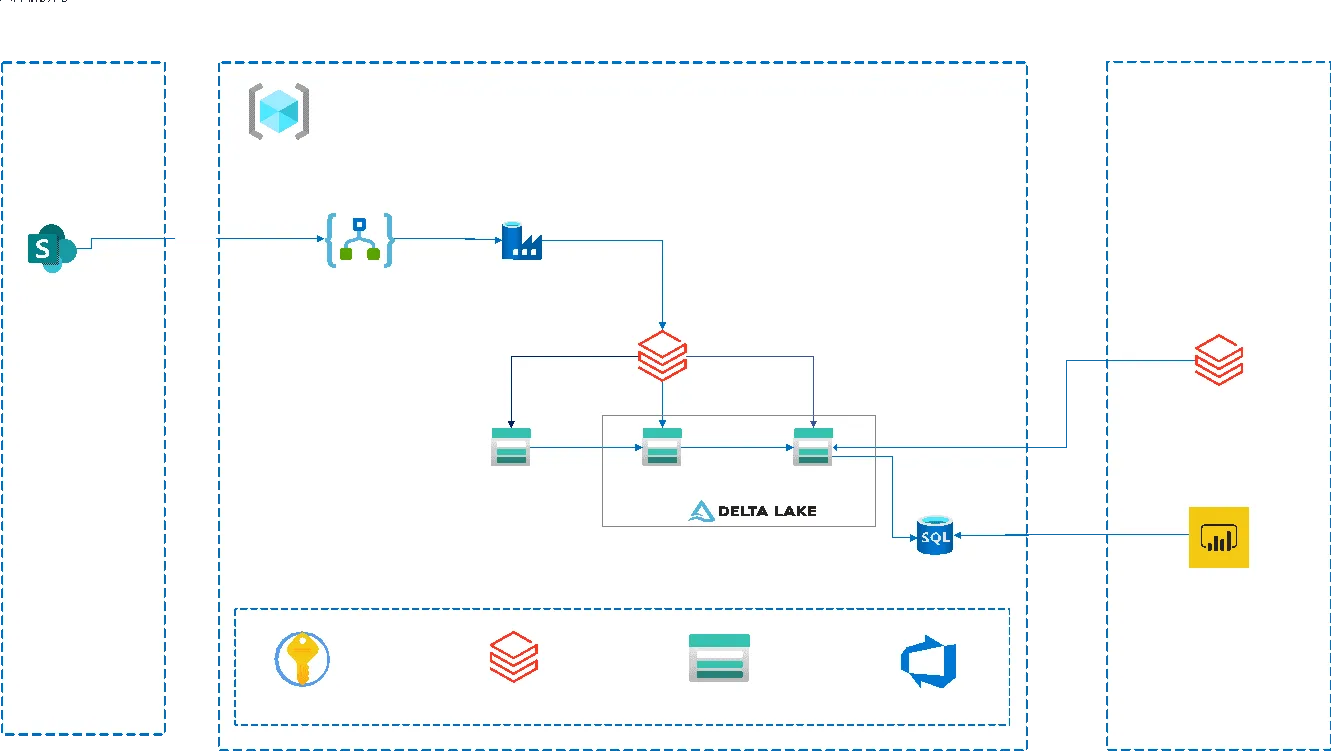
The exact services can change. The responsibilities remain: detect, validate, land, transform, publish, and monitor.

Choose authentication without sharing secrets
Never give a client secret, certificate private key, or reusable service credential to another user. Store credentials in an approved secret or certificate system, restrict access, and rotate them through a documented process.
For the managed SharePoint connector, document who owns the connection and how it is renewed. The connector is not listed among the Logic Apps connectors that support managed-identity authentication, so do not assume a managed identity is available for that action.
For unattended app-only access outside the managed connector:
- use Microsoft Graph selected permissions, such as a site-scoped permission, when the API and operation support them
- grant only the target site, list, or item access needed by the workflow
- require an administrator to approve the resource grant
- for SharePoint Online CSOM or REST app-only access, follow Microsoft’s certificate-based authentication guidance
- prefer a managed identity or federated credential only where the selected API and hosting path document support
Microsoft’s selected-permissions overview explains the two-part consent and resource-grant model. Its SharePoint app-only guidance requires a certificate for CSOM and REST access.
Validate before publishing data
Move the received file to a controlled landing area and record its source metadata. Validate schema, required fields, types, duplicates, and business rules before merging it with trusted data.
Rejected files need a quarantine location, reason, owner, and resubmission path. A failed validation should not silently stop the whole ingestion schedule.
For downstream processing, the workflow can call Azure Data Factory, Synapse, or another supported service. The Microsoft Synapse overview and Delta Lake guide provide historical design context; check current product guidance before reuse.
Operate the workflow
Capture the SharePoint item ID, file hash, workflow run, validation result, landed object, and published data version. Alert on repeated connector failures, authentication expiry, rejected files, and missed freshness targets.
Logic Apps keeps workflow version history. Promotion is useful, but production changes still need source control, review, and a rollback plan.

The original article linked to a time-bound marketplace engagement. That offer is not presented as current here. Contact Data-Driven to confirm present services and scope.
Data Engineering
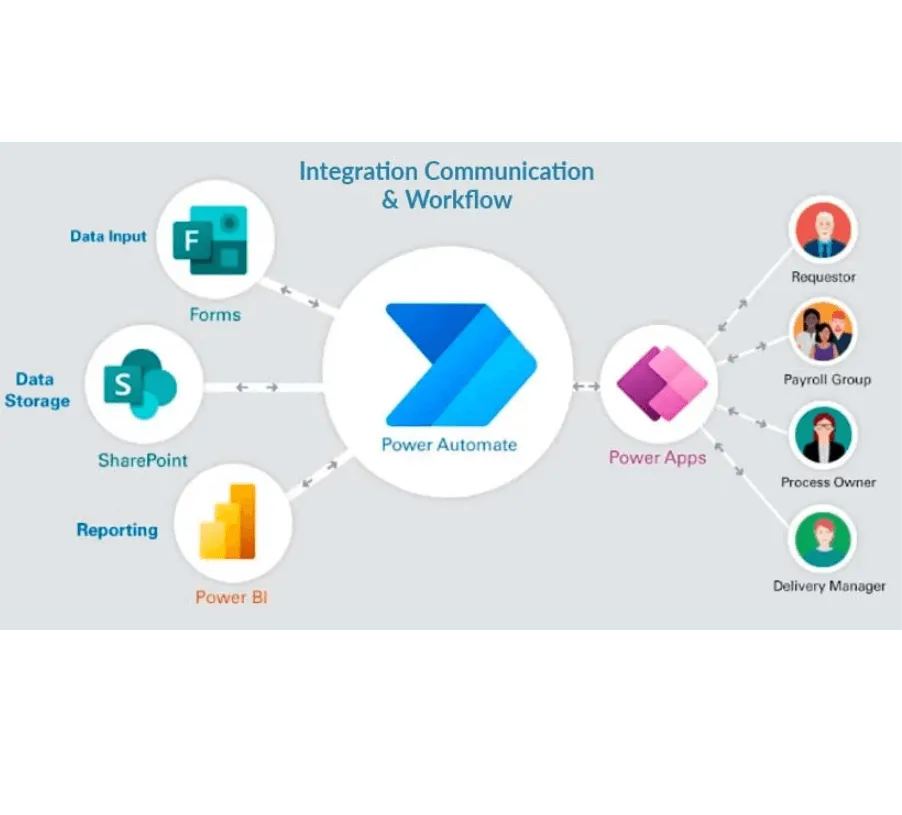
Microsoft Power Automate: A Practical Automation Guide
Identify repeatable workflows, set governance boundaries, and measure the value of Power Automate before scaling automation.
Data Engineering
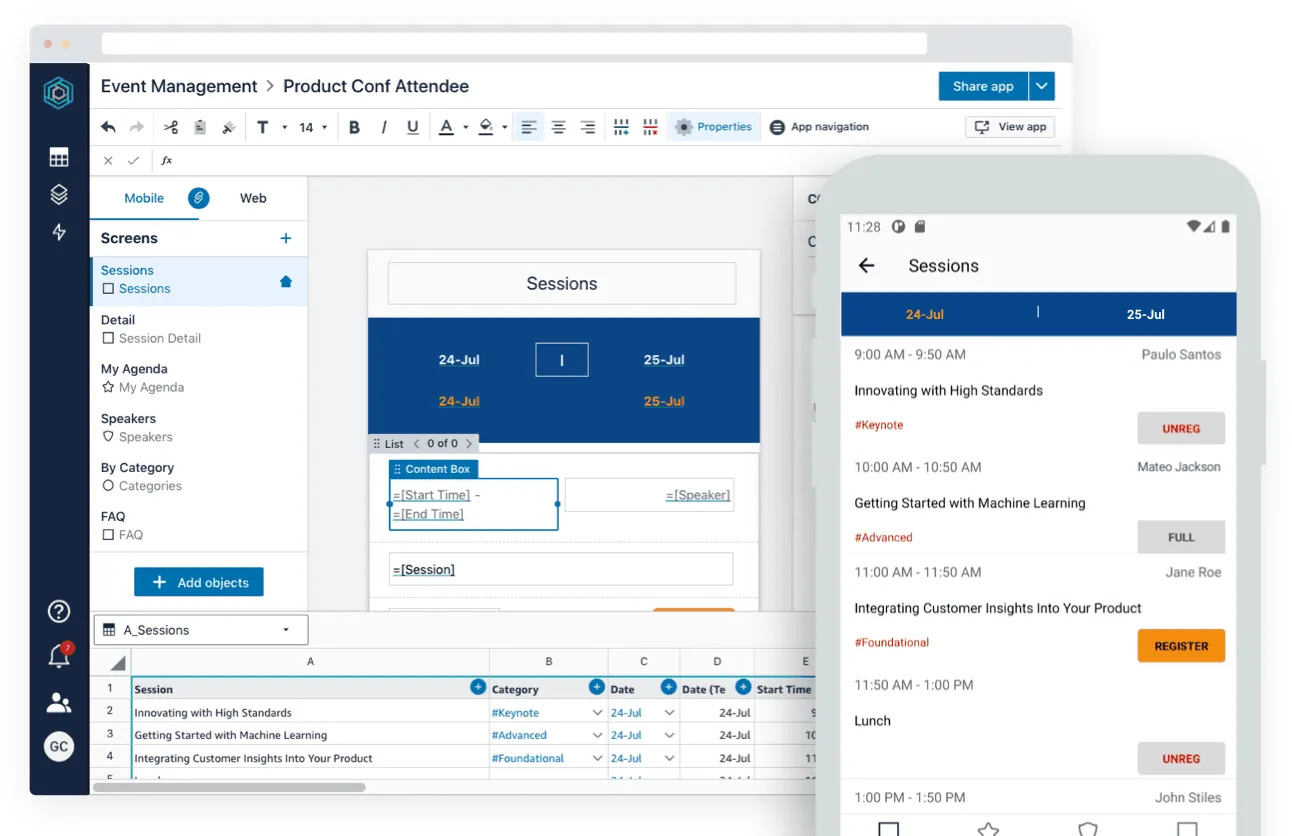
No-Code Business Apps: Power Apps and Honeycode
A historical look at when no-code tools fit internal business apps, how platform pricing changes the decision, and where custom code remains useful.
Business
Modernise Apps with AI and Microsoft Power Platform
Use this guide to assess Power Platform for legacy app modernisation, Copilot-assisted delivery, governance, and rollout planning.
Designing a governed ingestion workflow?
Map the source, identity, validation rules, and recovery path before automation.
'%3e%3cpath%20style='%20stroke:none;fill-rule:nonzero;fill:%230078d4;fill-opacity:1;'%20d='M%20130.835938%200.808594%20L%20246.300781%200.808594%20L%20126.433594%20355.867188%20C%20125.824219%20357.679688%20124.929688%20359.386719%20123.792969%20360.925781%20C%20122.65625%20362.46875%20121.285156%20363.816406%20119.726562%20364.933594%20C%20118.171875%20366.050781%20116.457031%20366.917969%20114.628906%20367.5%20C%20112.804688%20368.085938%20110.902344%20368.386719%20108.992188%20368.386719%20L%2019.128906%20368.386719%20C%2016.214844%20368.386719%2013.335938%20367.695312%2010.742188%20366.359375%20C%208.144531%20365.03125%205.902344%20363.097656%204.199219%20360.726562%20C%202.496094%20358.355469%201.382812%20355.613281%200.949219%20352.730469%20C%200.515625%20349.84375%200.78125%20346.894531%201.710938%20344.132812%20L%20113.386719%2013.320312%20C%20113.996094%2011.507812%20114.890625%209.800781%20116.03125%208.261719%20C%20117.167969%206.722656%20118.542969%205.371094%20120.09375%204.253906%20C%20121.648438%203.140625%20123.367188%202.273438%20125.191406%201.6875%20C%20127.015625%201.101562%20128.917969%200.800781%20130.832031%200.800781%20L%20130.832031%200.804688%20Z%20M%20130.835938%200.808594%20'%3e%3c/path%3e%3c/g%3e%3cg%20clip-rule='nonzero'%20clip-path='url(%23b1ce87f571)'%3e%3cpath%20style='%20stroke:none;fill-rule:nonzero;fill:%2302b2fe;fill-opacity:1;'%20d='M%20485.054688%200.800781%20L%20404.832031%200.800781%20C%20391.472656%200.800781%20380.636719%2011.625%20380.636719%2024.976562%20L%20380.636719%20316.339844%20L%20278.34375%2013.316406%20C%20278.03125%2012.417969%20277.679688%2011.5625%20277.210938%2010.703125%20C%20276.78125%209.84375%20276.273438%209.027344%20275.6875%208.246094%20C%20275.414062%207.855469%20275.101562%207.503906%20274.792969%207.15625%20C%20274.441406%206.765625%20274.128906%206.414062%20273.777344%206.101562%20C%20273.113281%205.402344%20272.410156%204.816406%20271.628906%204.269531%20C%20270.070312%203.140625%20268.351562%202.28125%20266.558594%201.695312%20C%20264.722656%201.113281%20262.8125%200.800781%20260.898438%200.800781%20L%20132.210938%200.800781%20C%20134.121094%200.800781%20136.03125%201.113281%20137.867188%201.695312%20C%20139.660156%202.28125%20141.378906%203.140625%20142.941406%204.269531%20C%20145.671875%206.21875%20147.816406%208.871094%20149.144531%2011.949219%20C%20149.222656%2012.144531%20149.300781%2012.300781%20149.339844%2012.496094%20C%20149.457031%2012.769531%20149.574219%2013.042969%20149.652344%2013.316406%20L%20261.328125%20344.128906%20C%20261.367188%20344.246094%20261.40625%20344.363281%20261.40625%20344.480469%20L%20265.269531%20355.863281%20C%20265.894531%20357.695312%20266.792969%20359.375%20267.921875%20360.933594%20C%20269.054688%20362.453125%20270.421875%20363.816406%20271.980469%20364.949219%20C%20273.542969%20366.039062%20275.257812%20366.898438%20277.054688%20367.484375%20C%20278.886719%20368.066406%20280.800781%20368.378906%20282.710938%20368.378906%20L%20404.660156%20368.378906%20C%20404.71875%20368.378906%20404.773438%20368.386719%20404.832031%20368.386719%20L%20485.054688%20368.386719%20C%20498.417969%20368.386719%20509.25%20357.566406%20509.25%20344.214844%20L%20509.25%2024.976562%20C%20509.25%2011.625%20498.417969%200.800781%20485.054688%200.800781%20Z%20M%20485.054688%200.800781%20'%3e%3c/path%3e%3c/g%3e%3c/g%3e%3c/svg%3e)